
Venue Admissions & Tickets for WooCommerce
Venue Admissions & Tickets transforms your WooCommerce product pages into events with purchasable tickets. Complete with interactive calendar and SEO schema data. Prefect for venue-based business such as museums, galleries and group classes.
Licences for this plugin need to be renewed each year

100% No-Risk, Money Back Guarantee!
Over the next 14 days, if our plugins aren't right for you, we’ll refund 100% of your money. No questions asked!
About Venue Admissions & Tickets
Sell admission tickets for museums, fitness classes, day passes, and venue experiences with date/time slot booking and automatic capacity tracking. Built specifically for businesses selling regular admission tickets rather than one-off events.
What Does It Do?
Venue Admissions transforms your WooCommerce products into bookable experiences. Customers select specific date and time slots when purchasing tickets. The system automatically tracks capacity and prevents overbooking — no manual spreadsheets, no double-booking headaches.
- Day Tickets for Museums & Galleries
Manage timed entry slots to control visitor flow and prevent overcrowding - Fitness Classes & Workshops
Sell class bookings with capacity limits matching your equipment and space - Recurring Venue Experiences
Tours, tastings, and regular events with repeating time slots - Flexible Ticket Types
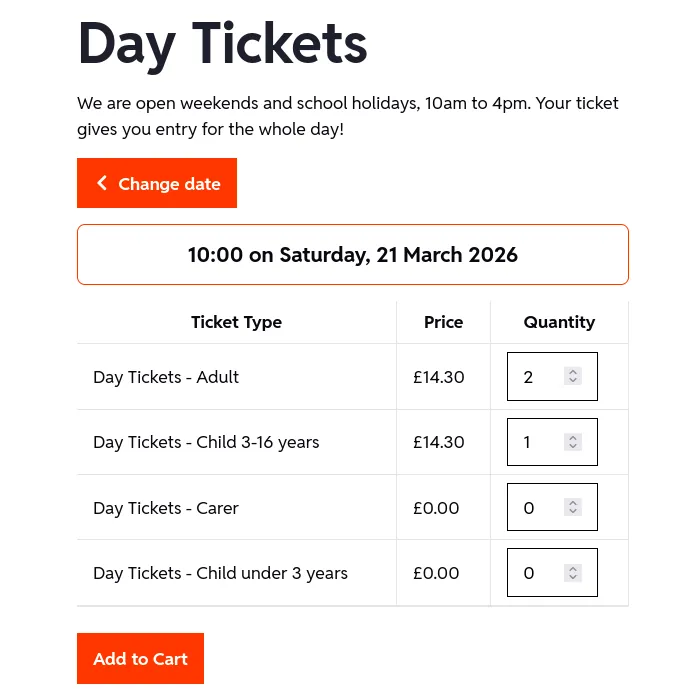
Use WooCommerce variations for Adult, Child, Senior, Family Pass pricing on shared time slots
Unlike event plugins designed for one-off concerts or festivals, Venue Admissions is built for ongoing admission sales — the kind museums, leisure centres, and visitor attractions run every day.
Perfect for Web Designers
You don’t need to be a developer to set this up for your clients. The plugin integrates seamlessly with WooCommerce’s familiar product editor:
- Visual Slot Manager
Add datetime slots using an intuitive grid interface (no spreadsheet imports needed) - Works with Page Builders
Compatible with Elementor, Gutenberg, and standard WooCommerce templates - No Code Required
Configure everything through the WordPress admin; customise styling with simple CSS if needed - HPOS Compatible
Fully supports WooCommerce’s High-Performance Order Storage for fast, scalable order management
How It Works
For Your Client (Venue Operator)
- Create a WooCommerce product for their admission tickets
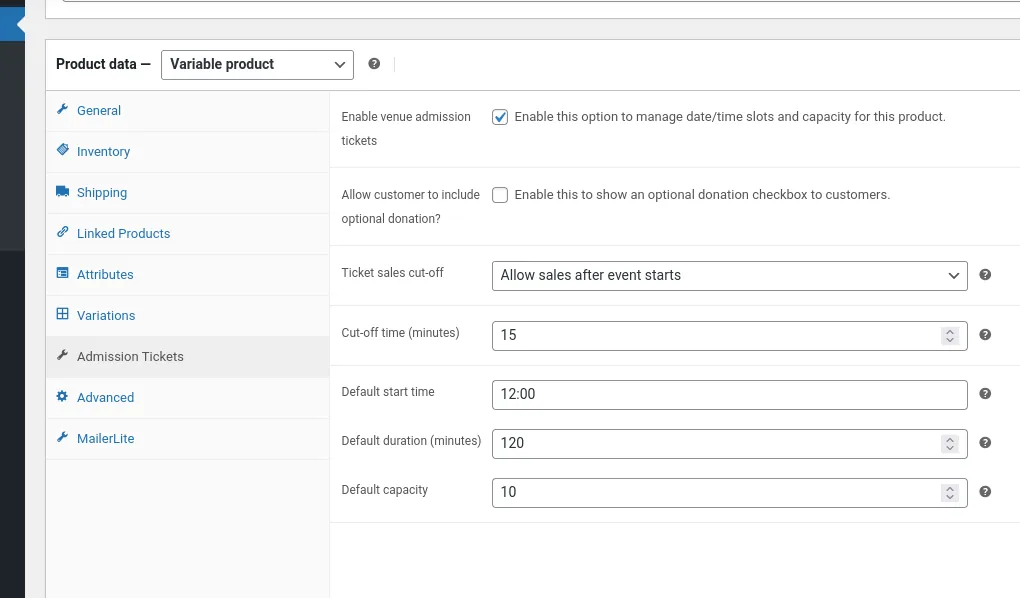
- Enable Venue Admissions on the product
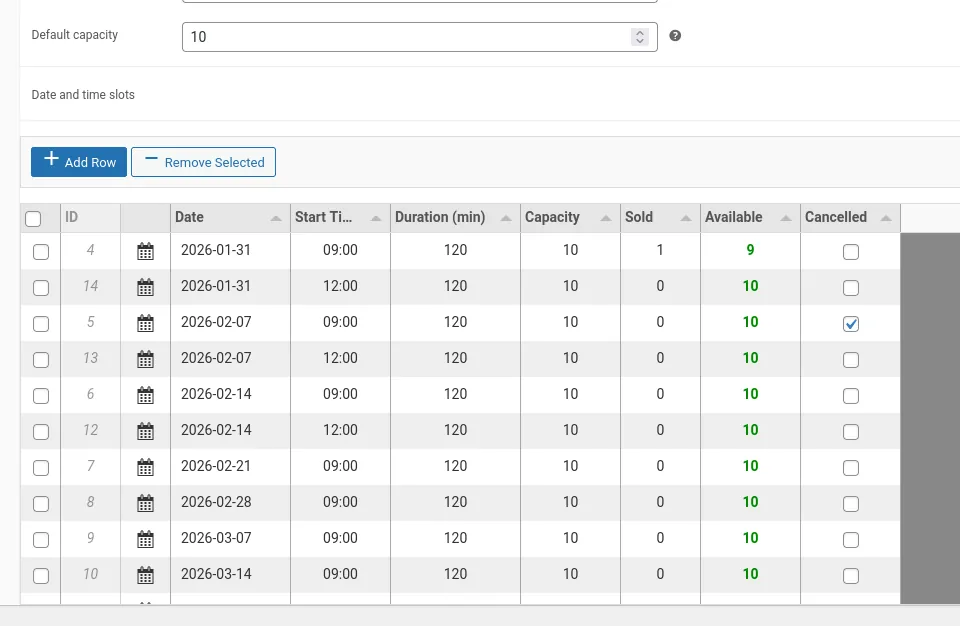
- Add datetime slots with capacity limits using the grid editor
- Set pricing (use variations for different ticket types like Adult/Child)
- Export attendance data as CSV for reporting or accounting
For Their Customers
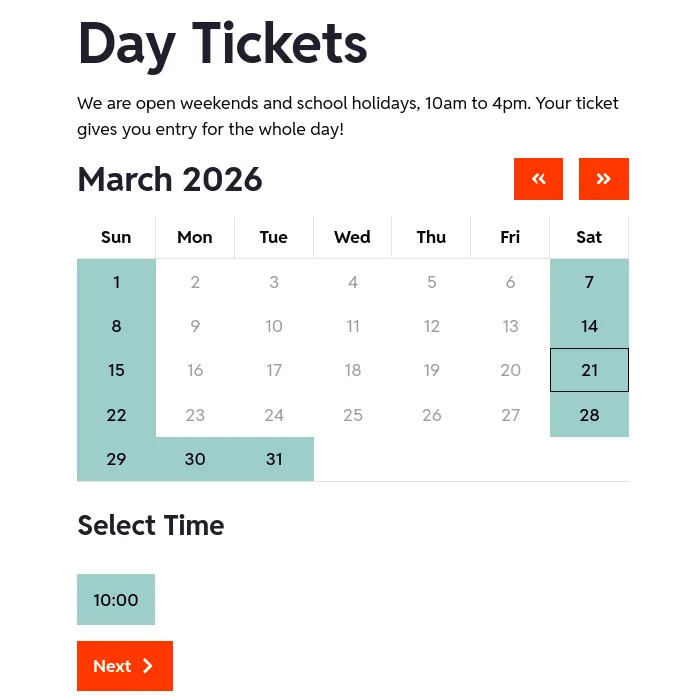
- Visit the product page and see a calendar of available dates
- Select a date and choose from available time slots
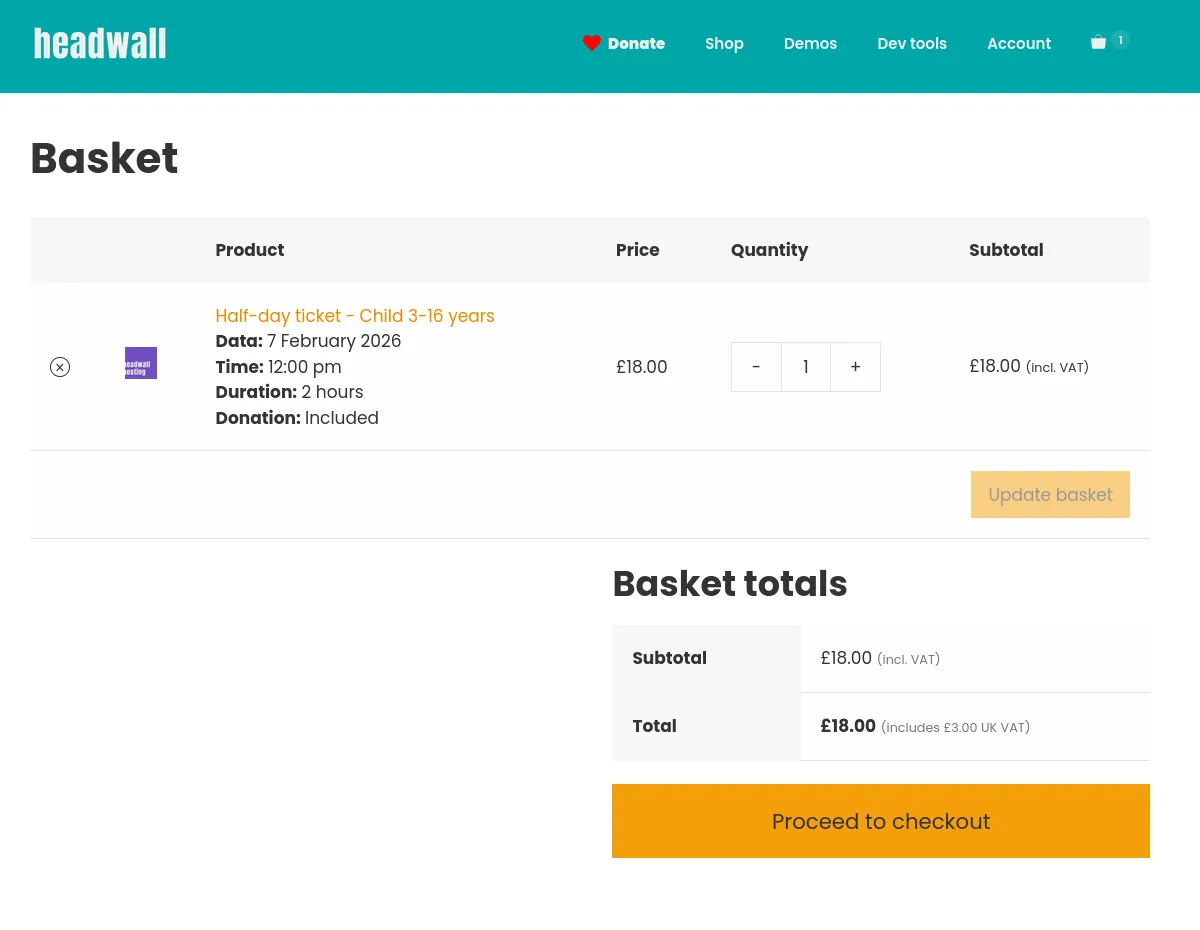
- Add tickets to cart (the slot and time are included)
- Complete checkout — capacity is automatically reserved
- Receive order confirmation with full booking details
No complicated forms. No confusing booking flows. Just a clean, visual calendar that makes sense.
Built for Performance
Many booking plugins rely on WordPress transients or object caching, which can cause issues with availability tracking under high traffic. Venue Admissions uses custom database tables optimised for fast queries — even with thousands of datetime slots across hundreds of products.
What this means for your client:
- No cache expiry issues causing double-bookings
- Handles traffic spikes without slowdown
- Works reliably on any WordPress hosting (no Redis or Memcached required)
- Scales from small venues to major attractions
Key Features Web Designers Love
- No Learning Curve — If you can create a WooCommerce product, you can set up venue admissions
- Template Override Support — Copy templates to your theme for complete HTML control
- CSS Customisation — Clean, semantic classes for easy styling to match client branding
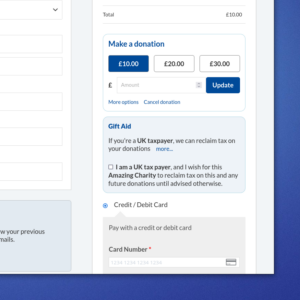
- Donation Integration — Works with UK Gift Aid for WooCommerce if your client is a charity
- Export & Reporting — Clients can download attendance data without asking you to build custom reports
Who Is This For?
- Museums and heritage sites selling day admission tickets
- Fitness studios and gyms selling class bookings
- Visitor attractions with capacity-controlled entry times
- Tour operators running regular scheduled tours
- Venues offering recurring workshops or experiences
Plugin Features
Core Functionality
✅ Datetime Slot Management
- Create time slots with start times, durations, and capacity limits
- Visual grid editor with inline editing (powered by Tabulator.js)
- Bulk add slots or create them individually
- Edit or delete existing slots with sold-ticket protection
- Mark slots as “cancelled” for events needing refunds before deletion
✅ Automatic Capacity Tracking
- Real-time availability updates as tickets are sold
- Prevents overbooking automatically — no manual intervention needed
- Shows “Sold Out” when capacity is reached
- Cart validation ensures customers can’t add unavailable slots
- Released capacity if orders aren’t completed (abandoned carts)
✅ Flexible Ticket Types (Variable Products)
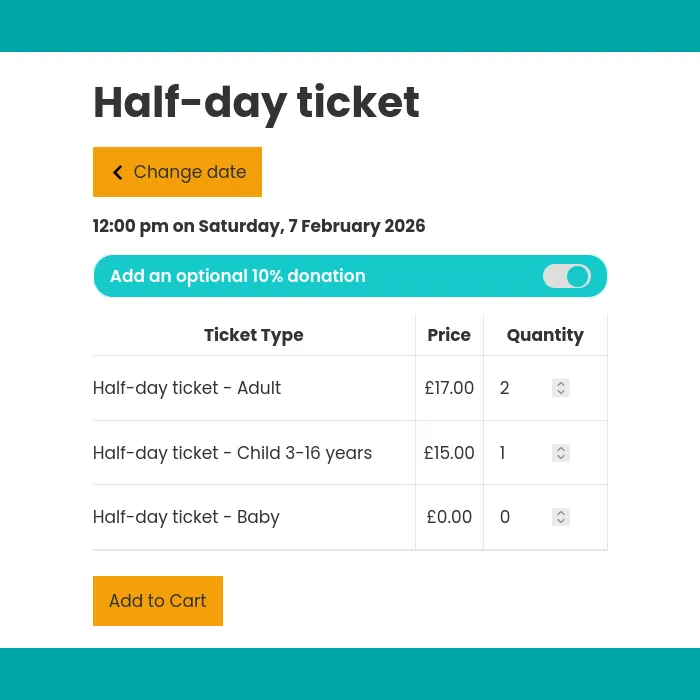
- Use WooCommerce variations for different pricing tiers (Adult, Child, Senior, Family Pass, etc.)
- All variations share the same datetime slots — customers choose ticket type, then select their preferred time
- Perfect for museums with age-based pricing or fitness classes with membership tiers
- Works seamlessly with WooCommerce’s built-in variation system
✅ Sales Cutoff Control
Choose when to stop selling tickets for each slot:
- Cut off at event start — Sales close when the event begins (recommended for most venues)
- Cut off before event start — Stop selling tickets X minutes before (e.g., 2 hours for tour preparation)
- Allow sales after start — Keep selling for X minutes after the event starts (e.g., museum day passes)
✅ Optional Donation Feature
- Add percentage-based donations to any product (e.g., “Add 10% to support conservation”)
- Configurable rounding options (round up/down/nearest or don’t round)
- Default selected or opt-in checkbox
- Integrates with UK Gift Aid for WooCommerce — when donation is ≥10% of ticket price, customers can consent to Gift Aid on the total amount
- Donation amount shown as separate line item in orders
Frontend Experience
✅ Beautiful Calendar Widget
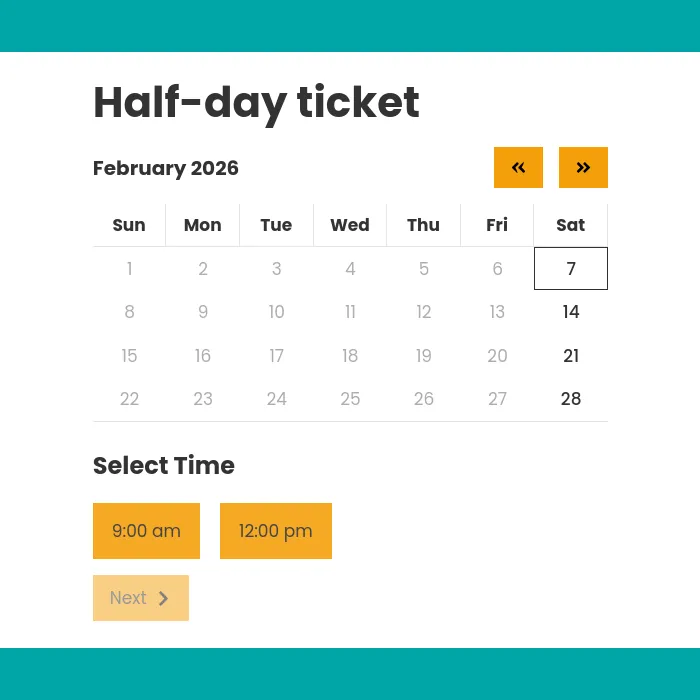
- Clean, responsive calendar for customers to select dates
- Powered by Flatpickr (industry-standard date picker)
- Shows available dates at a glance
- Click a date to see available time slots for that day
- Mobile-optimised for bookings on any device
✅ Time Slot Selection
- Visual list of available time slots after selecting a date
- Shows capacity status (e.g., “3 remaining” or “Sold Out”)
- One-click to add tickets to cart with selected datetime
- Clear display of event start time and duration
✅ Cart & Checkout Integration
- Selected datetime displays in cart and checkout
- Booking details included in order confirmation emails
- Admin order view shows full slot information
- Compatible with WooCommerce’s standard cart and checkout flows
Admin Tools
✅ CSV Export & Reporting
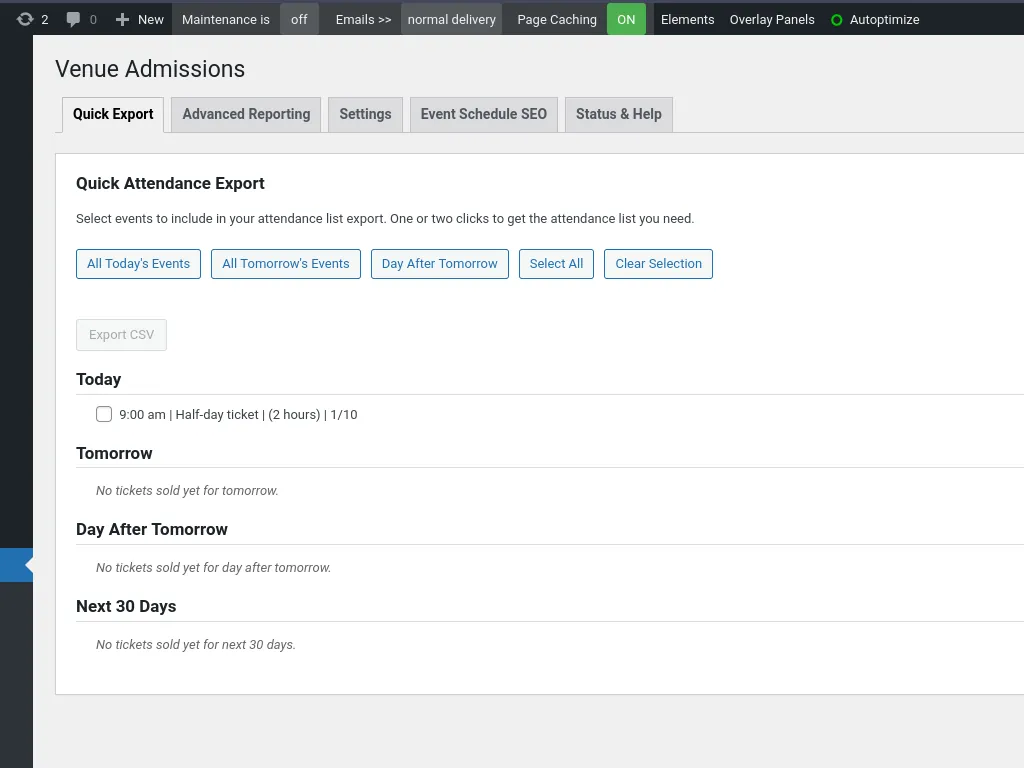
- Quick Export — Export upcoming events with one click
- Choose how many days ahead to export (e.g., next 3 days for front-of-house staff)
- Export includes: Slot ID, Product Name, Date/Time, Duration, Capacity, Sold, Available
- Use for daily reports, accounting, or backup
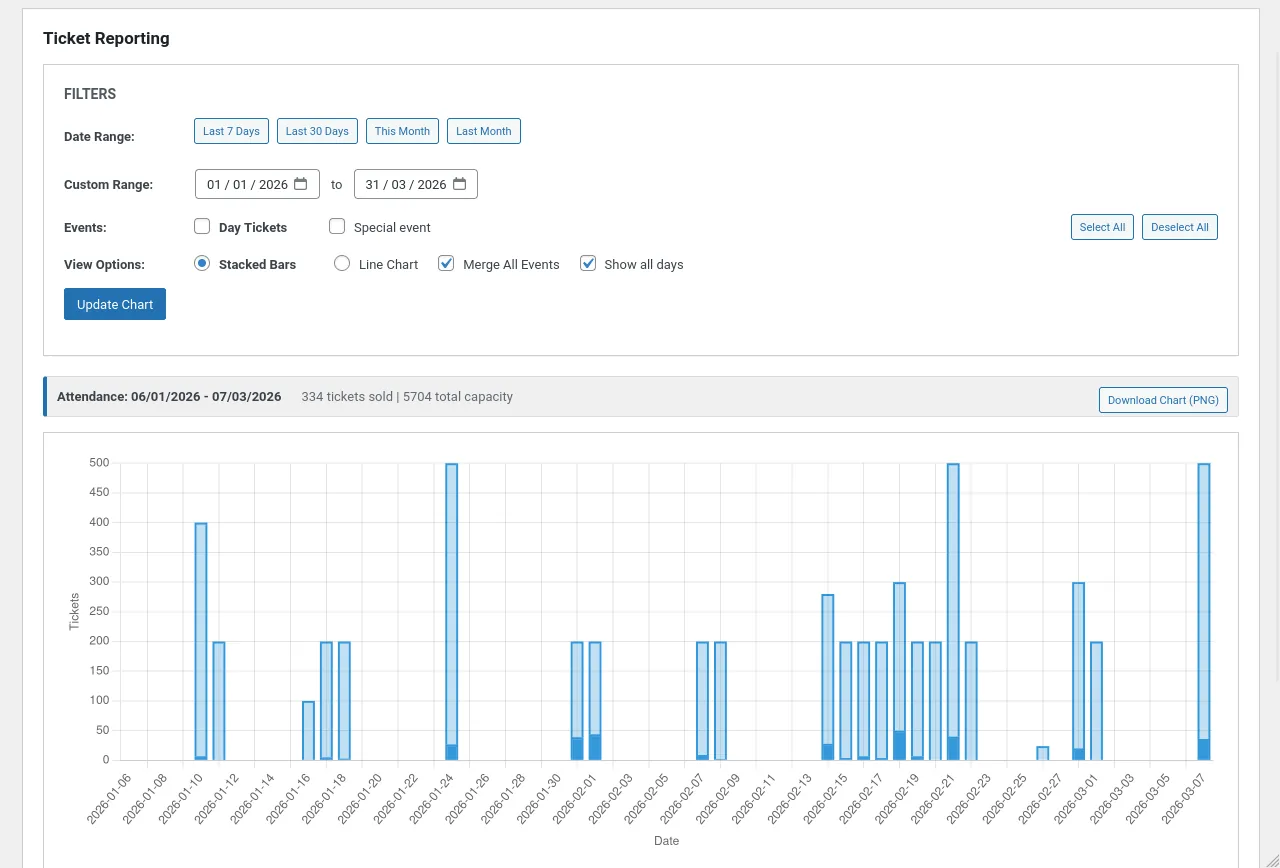
- Advanced Reporting — Visualise ticket sales with interactive charts:
- Events by Day (bar chart)
- Ticket Type Trends (line chart showing allocation patterns over time)
- Filter by date range and products
- CSV export of filtered chart data
- Gift Aid consent column automatically included when UK Gift Aid for WooCommerce is active
✅ Order Management
- View allocated slots on WooCommerce order pages
- Full and partial refund support with automatic capacity release
- When orders are refunded, tickets are automatically deallocated and capacity restored
- Works with WooCommerce’s High-Performance Order Storage (HPOS)
✅ Product Auto-Configuration
- Admission products automatically marked as “Virtual” (no shipping needed)
- Can be disabled if you need physical ticket fulfillment
- Saves time during product setup
Technical Features
✅ Built for Performance
- Custom database tables optimised for fast queries (not WordPress transients)
- No object cache dependency — works on any hosting without Redis/Memcached
- Handles thousands of datetime slots without slowdown
- Efficient JOIN queries for availability calculations
- Rate-limited AJAX endpoints prevent abuse
✅ WooCommerce & WordPress Compatibility
- WooCommerce: 10.0+ (tested up to 10.5.0)
- WordPress: 6.8+
- PHP: 8.0+ (built with modern PHP and strict type checking)
- HPOS: Fully compatible with High-Performance Order Storage
- Works with Simple and Variable products
- Compatible with most themes and page builders (Elementor, Gutenberg, etc.)
✅ Developer-Friendly
- Clean, well-documented codebase following WordPress Coding Standards
- Extensive PHP action and filter hooks for customisation
- Template override system (copy templates to your theme)
- CSS customisation hooks with semantic classes
- Modern architecture with proper separation of concerns
- Built-in integrations API for third-party plugin developers
✅ Integrations
- UK Gift Aid & Donations for WooCommerce — When donation ≥10% of ticket price, tickets become eligible for Gift Aid consent at checkout
What’s Coming
Future releases will include:
- CSV import for bulk slot creation
- Recurring slot templates (e.g., “every Saturday at 2pm for the next 3 months”)
- Customer-specific attendance lists
- Email reminders before events
- Status & diagnostics dashboard
Common Use Cases
Museums & Galleries
- Challenge: Control visitor flow to prevent overcrowding
- Solution: Timed entry slots with capacity limits spread attendance throughout the day
- Config: 30-minute entry windows, 40 visitors per slot, Adult/Child/Senior variations
Fitness Classes
- Challenge: Limited equipment and space for hands-on sessions
- Solution: Class schedule with exact capacity limits matching available equipment
- Config: Classes at specific times, capacity = number of machines/mats, Member/Non-member pricing
Guided Tours
- Challenge: Tours need minimum numbers but can’t exceed vehicle/guide capacity
- Solution: Set realistic capacity per tour, monitor sales, decide whether to run each tour
- Config: Daily tours (e.g., 10am, 2pm), capacity 15 people, 2-hour advance cutoff
Day Passes & Attractions
- Challenge: Manage venue capacity without turning customers away
- Solution: Sell dated admission tickets with daily capacity limits
- Config: All-day access, capacity per day, allow entry up to 2 hours after opening
Venue Admissions Actions & Filters
venue_admissions_export_days_ahead
Filter the number of days ahead to show in the quick export slots list.
Parameters:
$days(int) – Number of days ahead to show (default: 30)
Example:
/**
 * Show export slots for the next 60 days instead of 30.
 */
add_filter( 'venue_admissions_export_days_ahead', function( $days ) {
    return 60;
} );
venue_admissions_export_filename
Filter the CSV export filename before download.
Parameters:
$filename(string) – The default filename (e.g., “venue-admissions-2026-02-04.csv”)$date(string) – The export date in Y-m-d format
Example:
/**
 * Customise export filename to include venue name.
 */
add_filter( 'venue_admissions_export_filename', function( $filename, $date ) {
    return 'example-org-' . $date . '.csv';
}, 10, 2 );
Event Schema (SEO)
venue_admissions_schema_enabled
Enable or disable Event schema output for specific products.
Parameters:
$enabled(bool) – Whether schema is enabled (default: true)$product_id(int) – WooCommerce product ID
Example:
/**
 * Disable schema for specific private events.
 */
add_filter( 'venue_admissions_schema_enabled', function( $enabled, $product_id ) {
    $private_events = array( 123, 456, 789 );
    if ( in_array( $product_id, $private_events, true ) ) {
        return false;
    }
    return $enabled;
}, 10, 2 );
venue_admissions_schema_instances_limit
Filter the maximum number of event instances to include in schema.
Parameters:
$instances_limit(int) – Number of event instances (default: 14)$product_id(int) – WooCommerce product ID
Example:
/**
 * Show more instances for popular touring shows.
 */
add_filter( 'venue_admissions_schema_instances_limit', function( $limit, $product_id ) {
    $touring_shows = array( 100, 101, 102 );
    if ( in_array( $product_id, $touring_shows, true ) ) {
        return 30; // Show 30 instances instead of 14.
    }
    return $limit;
}, 10, 2 );
venue_admissions_schema_days_limit
Filter the maximum number of days ahead to include event instances in schema.
Parameters:
$days_limit(int) – Number of days ahead (default: 365)$product_id(int) – WooCommerce product ID
Example:
/**
 * Limit one-off events to show only next 30 days.
 */
add_filter( 'venue_admissions_schema_days_limit', function( $days, $product_id ) {
    $one_off_events = array( 200, 201 );
    if ( in_array( $product_id, $one_off_events, true ) ) {
        return 30;
    }
    return $days;
}, 10, 2 );
venue_admissions_schema_organizer
Filter the organiser data in Event schema.
Parameters:
$data(array) – Organiser data with@type,name, andurlkeys$product_id(int) – WooCommerce product ID
Example:
/**
 * Override organiser for specific promoter's events.
 */
add_filter( 'venue_admissions_schema_organizer', function( $data, $product_id ) {
    $live_nation_events = array( 300, 301, 302 );
    if ( in_array( $product_id, $live_nation_events, true ) ) {
        return array(
            '@type' => 'Organization',
            'name'  => 'Example Corp Entertainment',
            'url'   => 'https://example.com',
        );
    }
    return $data;
}, 10, 2 );
venue_admissions_schema_location
Filter the location/venue data in Event schema.
Parameters:
$data(array) – Location data (Place with PostalAddress)$product_id(int) – WooCommerce product ID
Example:
/**
 * Use different venue for touring shows.
 */
add_filter( 'venue_admissions_schema_location', function( $data, $product_id ) {
    $touring_show_id = 400;
    if ( $product_id === $touring_show_id ) {
        return array(
            '@type'   => 'Place',
            'name'    => 'Palacio Blanco',
            'address' => array(
                '@type'           => 'PostalAddress',
                'streetAddress'   => '1600 Pennsylvania Avenue',
                'addressLocality' => 'Washington',
                'addressRegion'   => 'DC',
                'postalCode'      => '20500',
                'addressCountry'  => 'US',
            ),
        );
    }
    return $data;
}, 10, 2 );
Chart Customisation
venue_admissions_chart_palette_size
Filter the number of colours in the reporting chart colour palette.
Parameters:
$palette_size(int) – Number of colours in palette (default: 20)
Example:
/**
 * Reduce palette size for venues with fewer events.
 */
add_filter( 'venue_admissions_chart_palette_size', function( $size ) {
    return 10;
} );
venue_admissions_chart_seed_color
Filter the seed colour used to generate the chart colour palette.
Parameters:
$seed_color(string) – Hex colour code for palette generation (default: ‘#3498db’)
Example:
/**
 * Use brand colour as chart palette seed.
 */
add_filter( 'venue_admissions_chart_seed_color', function( $color ) {
    return '#e74c3c'; // Red theme for brand consistency.
} );
Sales Cutoff
venue_admissions_cutoff_minutes
Filter the sales cutoff time in minutes for ticket purchases.
Parameters:
$cutoff(int) – The cutoff value in minutes (negative/zero/positive)$product_id(int) – WooCommerce product ID$mode(string) – The cutoff mode (‘before’, ‘at_start’, ‘allow_during’)$minutes(int) – The number of minutes configured in product settings
Example:
/**
 * Allow VIP products to be purchased up until start time.
 */
add_filter( 'venue_admissions_cutoff_minutes', function( $cutoff, $product_id, $mode, $minutes ) {
    $vip_products = array( 500, 501 );
    if ( in_array( $product_id, $vip_products, true ) ) {
        return 0; // Allow purchase until event starts.
    }
    return $cutoff;
}, 10, 4 );
Template System
venue_admissions_get_template
Filter the template file path after it has been located.
Parameters:
$located(string) – Full path to the located template file$template_name(string) – Template name (e.g., ‘calendar/header.php’)$args(array) – Arguments passed to template$template_path(string) – Path within theme (default: ‘venue-admissions/’)$default_path(string) – Default plugin templates path
Example:
/**
 * Override specific templates programmatically.
 */
add_filter( 'venue_admissions_get_template', function( $located, $template_name, $args, $template_path, $default_path ) {
    if ( 'ticket/donation.php' === $template_name ) {
        // Use custom template for donation toggle.
        return get_stylesheet_directory() . '/custom-donation.php';
    }
    return $located;
}, 10, 5 );
venue_admissions_locate_template
Filter the template path during template location.
Parameters:
$template(string) – Full path to template file$template_name(string) – Template name$template_path(string) – Path within theme
Example:
/**
 * Use different theme folder for templates.
 */
add_filter( 'venue_admissions_locate_template', function( $template, $template_name, $template_path ) {
    // Check in custom theme location first.
    $custom_path = get_stylesheet_directory() . '/woocommerce/venue-tickets/' . $template_name;
    if ( file_exists( $custom_path ) ) {
        return $custom_path;
    }
    return $template;
}, 10, 3 );
Donation System
venue_admissions_donation_info_link_text
Filter the text of the donation info link.
Parameters:
$text(string) – Link text (default: “What’s this?”)
Example:
/**
 * Change donation info link text.
 */
add_filter( 'venue_admissions_donation_info_link_text', function( $text ) {
    return __( 'Learn more', 'my-theme' );
} );
Action Hooks
Frontend Template Hooks
venue_admissions_before_ticket_selector
Fires before the ticket selector widget is rendered.
Example:
/**
 * Add promotional banner before ticket selector.
 */
add_action( 'venue_admissions_before_ticket_selector', function() {
    echo '<div class="promo-banner">Early bird discount available!</div>';
} );
venue_admissions_calendar_view
Main hook for rendering calendar view components.
Default Actions:
venue_admissions_template_calendar_header– Priority 10venue_admissions_template_calendar_table– Priority 20venue_admissions_template_time_slots– Priority 30
Example:
/**
 * Add custom instructions above the calendar.
 */
add_action( 'venue_admissions_calendar_view', function() {
    echo '<p class="calendar-instructions">Select a date to see available times.</p>';
}, 5 ); // Priority 5 runs before calendar header.
venue_admissions_calendar_nav_buttons
Fires within the calendar header navigation area.
Default Actions:
va_template_calendar_nav_previous– Priority 10va_template_calendar_nav_next– Priority 20
Example:
/**
 * Add a "Today" button between navigation buttons.
 */
add_action( 'venue_admissions_calendar_nav_buttons', function() {
    echo '<button type="button" class="va-today-btn button">Today</button>';
}, 15 ); // Priority 15 renders between Previous and Next buttons.
venue_admissions_ticket_view
Main hook for rendering ticket selection view components.
Default Actions:
venue_admissions_template_ticket_back_button– Priority 10venue_admissions_template_ticket_slot_info– Priority 20venue_admissions_template_ticket_donation– Priority 30venue_admissions_template_ticket_table– Priority 40venue_admissions_template_ticket_add_to_cart– Priority 50
Example:
/**
 * Add upsell message before ticket selection table.
 */
add_action( 'venue_admissions_ticket_view', function() {
    echo '<div class="upsell-message">Add parking for only £10!</div>';
}, 35 ); // Priority 35 runs after donation, before ticket table.
venue_admissions_after_ticket_views
Fires after both calendar and ticket views, but inside the widget container.
Default Actions:
venue_admissions_template_loading– Priority 10venue_admissions_template_error– Priority 20
Example:
/**
 * Add customer support link at bottom of widget.
 */
add_action( 'venue_admissions_after_ticket_views', function() {
    echo '<p class="support-link"><a href="/contact">Need help? Contact us</a></p>';
}, 30 );
venue_admissions_after_ticket_selector
Fires after the entire ticket selector widget is rendered.
Example:
/**
 * Add accessibility information after ticket selector.
 */
add_action( 'venue_admissions_after_ticket_selector', function() {
    echo '<div class="accessibility-info">';
    echo '<p>For wheelchair access and accessibility options, please call 0800 123 4567.</p>';
    echo '</div>';
} );
Template Loading
venue_admissions_before_template_part
Fires before a template part is included.
Parameters:
$template_name(string) – Template filename$template_path(string) – Path to template within theme$located(string) – Full path to located template file$args(array) – Arguments passed to template
Example:
/**
 * Log template rendering for debugging.
 */
add_action( 'venue_admissions_before_template_part', function( $template_name, $template_path, $located, $args ) {
    if ( defined( 'WP_DEBUG' ) && WP_DEBUG ) {
        error_log( 'Loading template: ' . $template_name . ' from ' . $located );
    }
}, 10, 4 );
venue_admissions_after_template_part
Fires after a template part has been included.
Parameters:
$template_name(string) – Template filename$template_path(string) – Path to template within theme$located(string) – Full path to located template file$args(array) – Arguments passed to template
Example:
/**
 * Add wrapper closing tag after donation template.
 */
add_action( 'venue_admissions_after_template_part', function( $template_name ) {
    if ( 'ticket/donation.php' === $template_name ) {
        echo '</div><!-- .donation-wrapper -->';
    }
}, 10, 1 );
SEO & Event Schema
One of the biggest advantages of Venue Admissions is the automatic Event structured data it adds to your products. This helps Google understand your venue’s admission tickets and can earn you rich results in search — making your client’s listings stand out.
What Is Event Schema?
Event schema is structured data (JSON-LD) that tells search engines: “This product is an event with specific dates and times.” When Google reads this data, it can display your events in special search features like:
- Google Event Search — Dedicated event discovery features
- Rich Results — Enhanced listings with date, time, location, and pricing
- Knowledge Panels — Featured information boxes for popular venues
- Google Maps Integration — Events can appear in local search results
Why it matters for admission tickets:
Museums, fitness classes, and regular venue experiences are recurring events. Search engines treat them differently from one-off concerts or festivals. Proper Event schema helps Google understand that your museum has daily admission slots or your gym has regular class schedules.
How Venue Admissions Handles SEO
✅ Automatic Event Schema Generation
When you enable Event schema, Venue Admissions automatically adds structured data to every product page with datetime slots. This happens behind the scenes — no coding required.
What gets included:
- Event name (your product title)
- Event description (product description)
- Date and time of upcoming instances (e.g., next 14 slots within 365 days)
- Venue location (from WooCommerce store address or custom venue address)
- Organizer information (your venue/organization name)
- Ticket prices (from product variations)
Google sees your product as a series of Event instances (e.g., “Museum Entry — 10:00 AM March 15th”, “Museum Entry — 2:00 PM March 15th”).
✅ Smart Defaults for Regular Admissions
Unlike one-off event plugins that show every single instance, Venue Admissions uses smart limits designed for recurring admissions:
- Default: Show next 14 event instances within 365 days
- Prevents overwhelming Google with hundreds of identical time slots
- Focuses on upcoming availability (most relevant for searchers)
- Updates automatically as dates pass
Why this matters:
If your museum has 10 entry slots per day, Google doesn’t need to see all 3,650 slots for the next year. Showing the next 2 weeks gives Google (and potential visitors) a clear picture of availability without cluttering search results.
✅ Configurable Schema Settings
You control exactly how Event schema works for your client’s site:
Schema Mode
- Automatic (recommended): Uses smart defaults (14 instances, 365 days)
- Advanced: Customise instance limits and date ranges to suit your client’s business
Organizer Information
- Set the organization name (e.g., “Natural History Museum”)
- Add organizer website URL (optional but recommended for credibility)
Venue Location
Two options:
- Use WooCommerce store address — Pulls from WooCommerce > Settings > General (one-click setup)
- Custom venue address — Provide specific venue details if different from your store address
Example scenario: Your client’s business address is their office, but events happen at a museum across town. Use the custom venue address to ensure Google shows the correct location in search results.
How Event Schema Helps Admission Tickets
Museums & Heritage Sites
Search benefit: When someone searches “museum tickets [city name]”, Google can display your client’s venue in event results with:
- Next available entry times
- Ticket prices (Adult, Child, Family)
- Venue location on map
- Direct link to ticket sales
Competitive advantage: Most museum websites don’t have proper Event schema. Adding it can boost visibility and drive more ticket sales.
Fitness Classes
Search benefit: “Yoga classes near me” or “pilates class [area]” searches can show:
- Upcoming class times this week
- Pricing for members vs. non-members
- Studio location
- Booking link
Competitive advantage: Stand out from fitness directories and aggregator sites by controlling your own event data.
Day Tickets & Attractions
Search benefit: “Things to do this weekend [city]” or “[attraction name] tickets” can display:
- Available days and times
- Admission pricing
- Attraction location
- Special events or limited-capacity experiences
Competitive advantage: Rich results with dates and prices get higher click-through rates than standard blue links.
Setting Up Event Schema (No Code Needed)
- Go to WooCommerce > Settings > Venue Admissions > Event Schema
- Check “Add event schema to product pages”
- Choose Schema Mode:
- Use Automatic for most clients
- Use Advanced if they need more control (e.g., show 30 instances for touring shows)
- Fill in Organizer Information:
- Organization name (e.g., your client’s venue name)
- Website URL (optional but recommended)
- Set Venue Location:
- Tick “Use WooCommerce store address” if the store address is correct
- Or provide custom venue address details below
- Click Save Changes
That’s it. Event schema is now active on all venue admission products.
Advanced: Per-Product Schema Control
Need more flexibility? Developers can use PHP filters to customise schema on a per-product basis:
Disable schema for specific products:
add_filter( 'venue_admissions_schema_enabled', function( $enabled, $product_id ) {
    // Disable schema for private events
    if ( in_array( $product_id, [123, 456], true ) ) {
        return false;
    }
    return $enabled;
}, 10, 2 );
Show more instances for popular products:
add_filter( 'venue_admissions_schema_instances_limit', function( $limit, $product_id ) {
    // Show 30 instances for touring shows
    if ( in_array( $product_id, [789], true ) ) {
        return 30;
    }
    return $limit;
}, 10, 2 );
Override venue location for specific products:
add_filter( 'venue_admissions_schema_location', function( $data, $product_id ) {
    // Use different venue for pop-up events
    if ( $product_id === 999 ) {
        return [
            '@type' => 'Place',
            'name' => 'Pop-Up Gallery',
            'address' => [
                '@type' => 'PostalAddress',
                'streetAddress' => '123 High Street',
                'addressLocality' => 'London',
                'postalCode' => 'SW1A 1AA',
                'addressCountry' => 'GB',
            ],
        ];
    }
    return $data;
}, 10, 2 );
See the Actions & Filters tab for complete documentation on available hooks.
Validating Your Event Schema
After enabling Event schema, test it to make sure Google can read it correctly:
- Open one of your admission product pages
- Go to Google’s Rich Results Test
- Paste your product page URL
- Click “Test URL”
- Check for “Event” in the detected structured data
What to look for:
- ✅ No errors or warnings
- ✅ Event name, dates, and location are correct
- ✅ Multiple event instances appear if your product has upcoming slots
Common issues:
- ❌ Missing venue address — make sure you’ve configured location in settings
- ❌ No events detected — ensure you’ve enabled schema and the product has future datetime slots
- ❌ Incorrect dates — check your server timezone settings
SEO Best Practices for Admission Tickets
Beyond Event schema, here’s how to maximise your client’s search visibility:
Product Titles & Descriptions
- Use natural language: “Museum Day Pass” not “Product #123”
- Include location in title if relevant: “Natural History Museum London Tickets”
- Write clear, benefit-focused descriptions (not just feature lists)
- Mention key terms: admission, tickets, entry, day pass
Images
- Use high-quality photos of the venue or experience
- Add descriptive alt text: “Main entrance of Natural History Museum”
- Include multiple images showing what customers can expect
Categories & Tags
- Create categories like “Museum Tickets”, “Fitness Classes”, “Day Passes”
- Use tags for special attributes: “Family Friendly”, “Under 2 Hours”, “Wheelchair Accessible”
URLs
- Use clean, descriptive permalinks:
/product/museum-day-pass/not/product/p123/ - Include relevant keywords but keep it readable
Meta Descriptions
- Install an SEO plugin (Yoast SEO, Rank Math, etc.)
- Write compelling meta descriptions that encourage clicks
- Include calls to action: “Book your timed entry online and skip the queue”
Event schema is just one part of your SEO strategy, but it’s a powerful one. Combined with well-optimised product pages, it helps your client’s admission tickets appear prominently in Google search — driving more visitors and more ticket sales.
Changelog: Venue Admissions and Tickets
Version 1.5.1
Released: 2026-03-24
- Fixed a problem with start time being displayed incorrectly in the cart item meta, when the start date is in a different timezone to the current date. A display issue.
Version 1.5.0
Released: 2026-03-03
- Tighter automatic integration with our Gift Aid plugin, when an event ticket has a 10% voluntary donation included above the ticket price.
- Gift Aid consent column added to CSV attendance exports.
- Fixed some minor translation issues.
- Fixed an issue with HPOS. Removed an unnecessary database call left over from early development.
Version 1.4.1
Released: 2026-02-16
- Fixed the available times not showing correctly in the front-end during daylight saving.
Older releases
- Automatically set event products to "virtual". If you don't want this behaviour, you can disable it in the settings page.
- FIX: Hidden fields are now properly disabled to prevent "not focusable" console errors
Charting & Reporting updates
- New line chart visualisation showing ticket allocation trends by variation over time
- Chart data now loads lazily only when Reporting tab is activated
- Added CSV import/export for datetime slots with drag-drop upload and preview
- Added variation short name field for cleaner mobile-friendly displays
- Fixed settings page layout (Frontend Display Settings table structure)
- Updated translations (machine translated, for now)
- Minor update to the Status & Help admin tab. Proper links to the plugin's support page, and a click-to-copy (to clipboard) button to capture simple diagnostic info that can be pasted into a support email.
- Interactive Attendance Reporting Dashboard, with visual charts and multiple CSV export options.
- Official stable release
- Full feature set for venue admission ticket management
- Multi-language support in 8 languages - machine-translated, pending human review.
- HPOS compatible with WooCommerce 10 onwards
- Responsive frontend calendar widget
- Fixed and polished the translations, although there is still work to do for some of the locales.
- Added support for several languages.
- Testing the licensed auto-update functionality.
- Pre-release. Fully featured. Final pre-production tests.
- Pre-release testing
1 review for Venue Admissions & Tickets for WooCommerce
Only logged in customers who have purchased this product may leave a review.


Abbie Rumbold –
Paul’s plug in is fantastic. We are a small museum and it allows us to sell tickets and collect gift aid on our admissions in accordance with the HMRC rules. Sounds simple but there is nothing else on the market that does it. The back end is perfect for what we need. And the most important thing is that Paul is so helpful – always responsive, listens carefully and is solutions focused. Brilliant!
Paul –
Thanks Abbie. It’s great to see the new plugin working well for The Observatory & Museum.